Local Configuration Settings
Local configuration settings allow you to customize the behavior and appearance of the Staff App on a specific terminal. These settings are stored locally and do not affect other terminals.
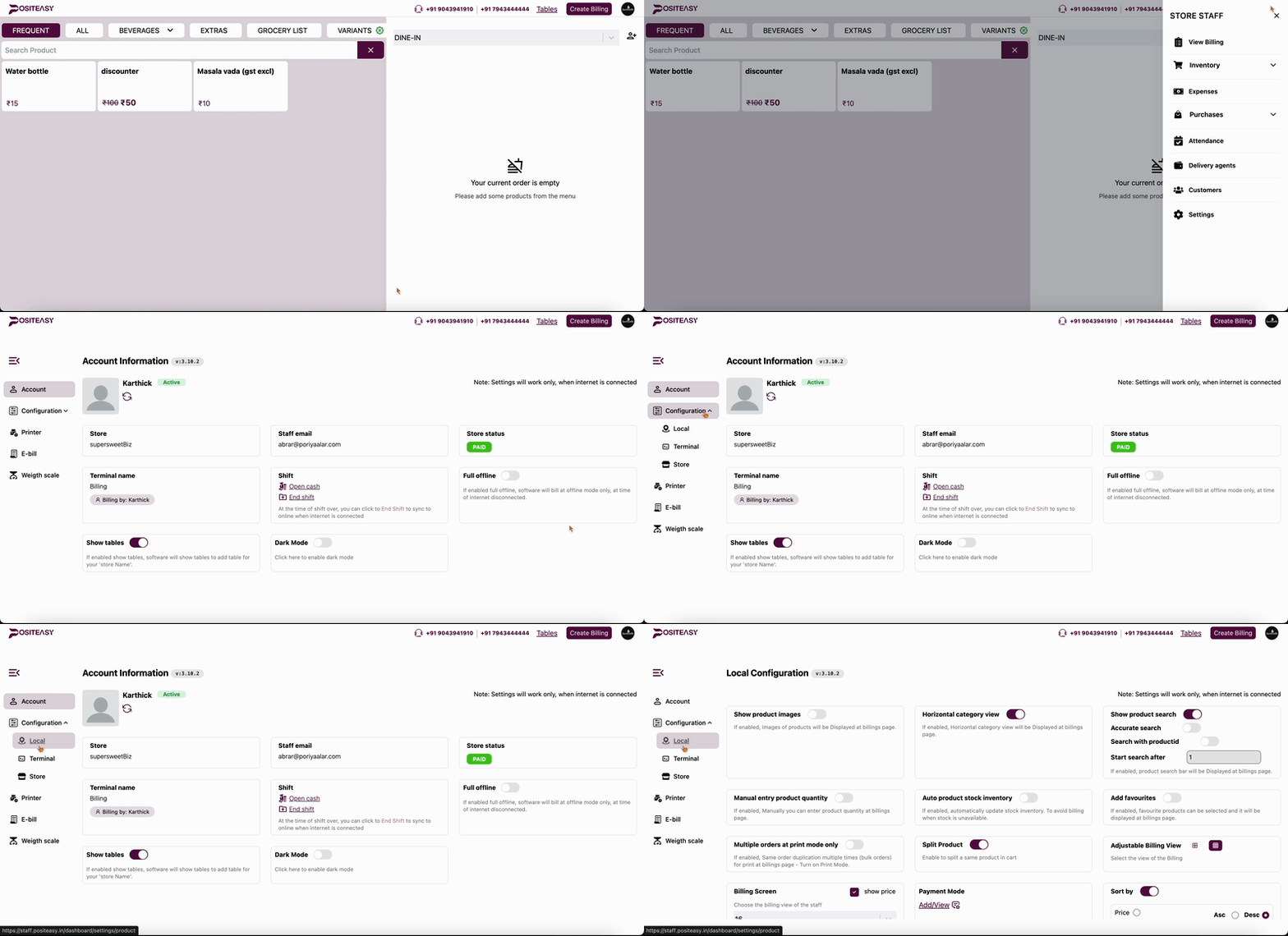
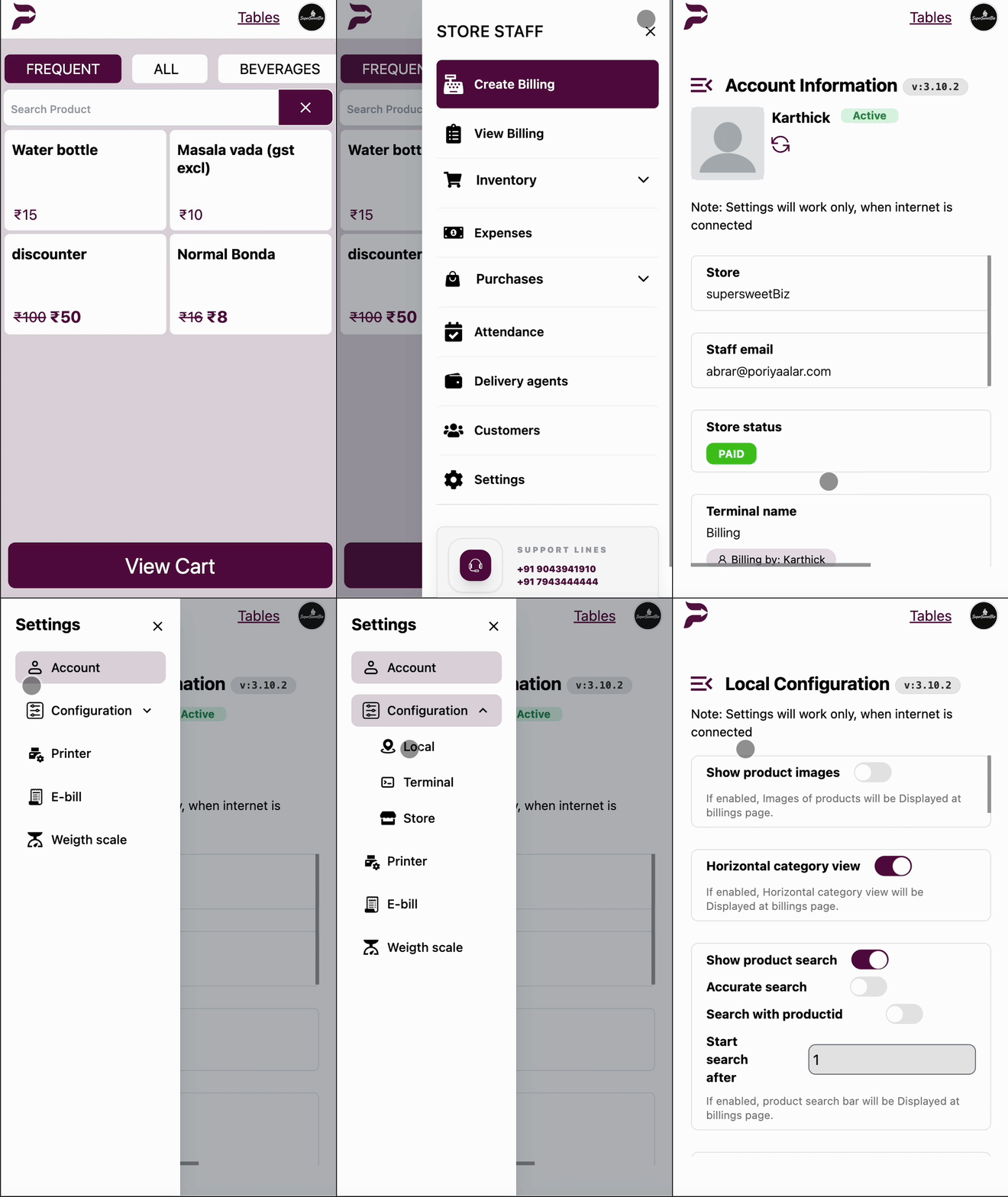
To access these settings:
- Open the Staff App.
- Go to Configuration -> Local.
- 💻 Desktop View
- 📱 Mobile View
Billing Switches
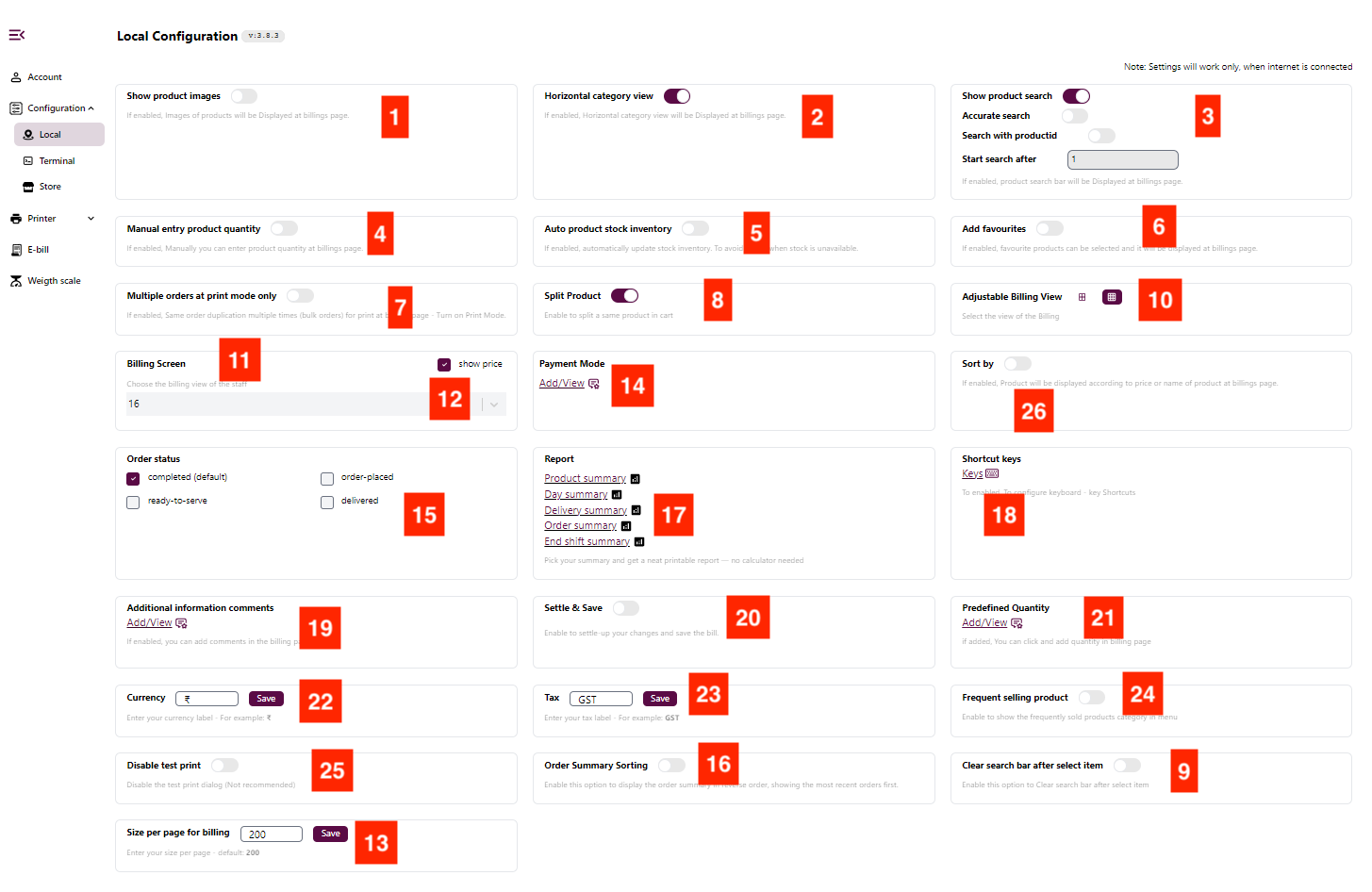
These toggle switches control various features on the billing page.
| S.No | Configuration | Description |
|---|---|---|
| 1 | Show product images | If enabled, images of products will be displayed on the billing page. |
| 2 | Horizontal category view | If enabled, categories will be displayed horizontally at the top of the billing page. |
| 3 | Show product search | If enabled, a search bar for products will be displayed on the billing page. |
| 3a | Accurate search | A sub-setting of "Show product search". If enabled, the search will match the exact product name more strictly. |
| 3b | Search with product ID | A sub-setting of "Show product search". If enabled, you can search for products using their unique IDs. |
| 3c | Search after | A sub-setting of "Show product search". If enabled, searching occurs after a certain number of characters are entered. |
| 4 | Manual entry product quantity | If enabled, you can manually enter the quantity for a product when adding it to the cart.(useful for entering large quantities or quantity in decimal) |
| 5 | Auto product stock inventory | If enabled, the app automatically updates stock of inventory to prevent billing when stock is unavailable. |
| 6 | Favourites / Add favourites | If enabled, you can select and display favourite products on the billing page for quick access. (A new category Favourites will be shown) |
| 7 | Multiple orders at print mode only | If enabled, allows duplicating the same order multiple times for bulk printing (requires Print Mode). |
| 8 | Split Product | Enable this to split the same product into multiple lines in the cart. (Useful if the same product is needed for both parcel and dine-in) |
| 9 | Clear search bar after select item | If enabled, the product search bar clears automatically after a product is selected. |
Layout and View Settings
Customize the visual layout of the billing screen.
| S.No | Configuration | Description |
|---|---|---|
| 10 | Adjustable Billing View | Choose between a Big Grid (4 products in a row) or Small Grid (3 products in a row) view for products on the billing screen. |
| 11 | Billing Screen | Select the font size for the billing screen (e.g., 10, 12, 14, 16, 18, 20). |
| 12 | Show Price | Toggle whether to show the price of items on the billing screen. |
| 13 | Size per page for billing | Define the number of items to load per page. Default is 200. |
Payment and Order Settings
Configurations related to payments and order handling.
| S.No | Configuration | Description |
|---|---|---|
| 14 | Payment Mode Selector | Configure available payment modes (Cash, Card, UPI, etc.) and integrate with EDC terminals (Paytm, PhonePe, Pinelabs). |
| 14a | Payment View Mode | Choose how payment options are displayed (e.g., Select, Grid). |
| 15 | Order Status Selector | Make bill/order based on the order status - default is COMPLETED. (completed,order-placed,ready-to-serve,delivered). |
| 16 | Order Summary Sort | Configures the sorting order for the billing products in the cart. ( When enabled, the cart shows most recent added products first.) |
Reports and Summaries
Settings for generating and printing various reports.
| S.No | Configuration | Description |
|---|---|---|
| 17 | Product Summary | Print a summary of products sold. (Have to enable in merchant app settings) |
| 17a | Day Summary | Print a summary for the entire day. (Have to enable in merchant app settings) |
| 17b | Delivery Summary | Print a summary for delivery orders. (Have to enable in merchant app settings) |
| 17c | Order Summary | Print a summary of all orders. (Have to enable in merchant app settings) |
| 17d | End Shift Summary | Print a summary when finishing a shift. |
Additional Tools and Information
Specialized settings and informational dialogs.
| S.No | Configuration | Description |
|---|---|---|
| 18 | Shortcut Keys | Configure and view keyboard shortcuts for common actions. |
| 19 | Additional Information Comments | Configure predefined additional comments or messages for billing. |
| 20 | Settle and Save | When enabled, the system calculates and shows the change to return to the customer. (Works for CASH payment mode only) |
| 21 | Predefined Quantity | Set up predefined quantities for quick selection during billing. (Works with 4. Manual entry product quantity enabled) |
| 22 | Currency Symbol | Set the currency symbol (e.g., ₹, $, £) to be used in the app. |
| 23 | Tax Label | Set the label for taxes (e.g., GST, VAT, Service Tax). |
| 24 | Frequent Selling Products | Creates a category named "Frequent" that displays the most frequently sold products. You can adjust how many of the top-selling items should appear in this category. |
| 25 | Disable Test Print | Toggle the test print feature during printer setup. |
| 26 | Sort By | Set the sorting criteria for products (e.g., Price, Name, Rank). |
note
Some settings may require an active internet connection to take effect or sync with the server.